Cory Marsh has over 20 years Internet security experience. He is a lead developer on the BitFire project and regularly releases PHP security and programming videos on BitFire's you tube channel.
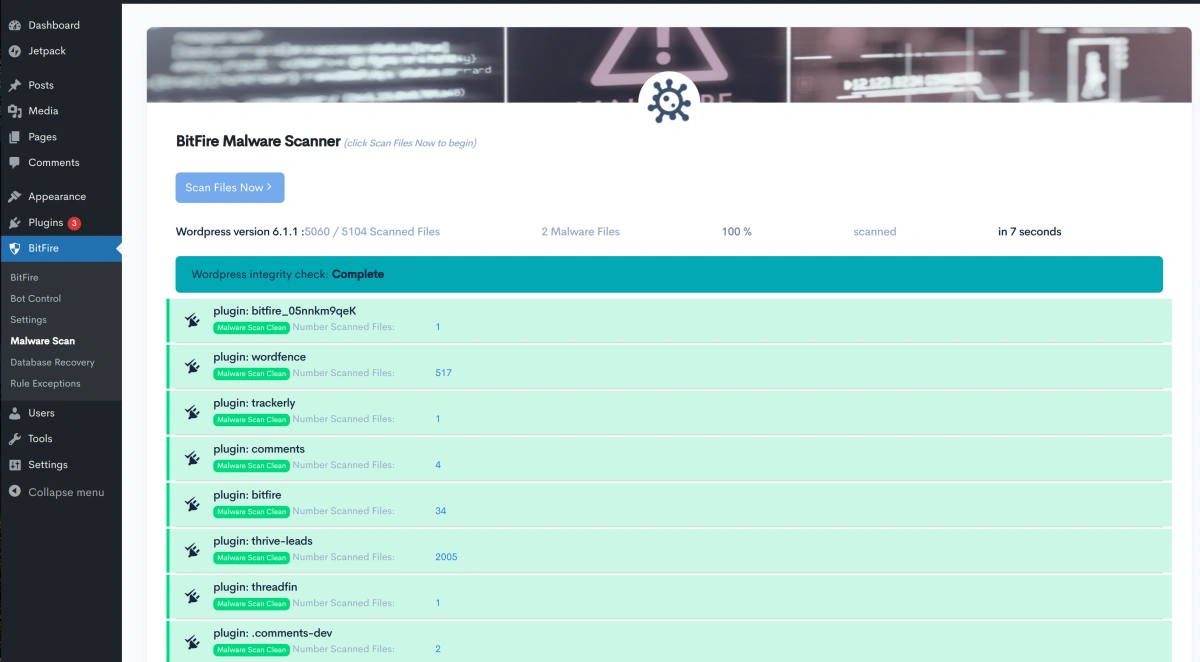
BitFire Malware Scanner
BitFire's malware scanner protects your WordPress site by checking every file against a database of over 10,000,000 known WordPress core, plugin, and theme files.
Any file that has been modified or doesn't belong is flagged for your review. Suspicious files are then evaluated using advanced machine learning to determine
whether they are actual malware or harmless code.
A typical WordPress site with around 10,000 files completes a scan in about 60 seconds. Subsequent scans are even faster.
Running a Scan
In your WordPress admin, go to BitFire → Malware Scanner
Click Scan Files Now (or Rescan Files Now if you've scanned before)
A progress bar shows files scanned, percentage complete, and elapsed time
When the scan finishes, results appear automatically
If you leave the page and come back later, your previous scan results are loaded automatically — no need to rescan.
Tip: You can schedule automatic scans. Go to BitFire → Settings to set a scan interval anywhere from every 5 minutes to manual-only.
The BitFire Malware Scanner
How the Scanner Works
The scan runs in three steps:
Step 1: Hash Comparison
Every PHP and JavaScript file on your site is fingerprinted and compared against BitFire's database of official files from WordPress.org — including core, plugins,
and themes. Files that match are marked Clean and require no action.
Step 2: Difference Analysis
Files that exist in the official WordPress repository but have been changed are compared to the original version so you can see exactly what was modified.
Files that don't exist in any repository are treated as entirely unknown.
Step 3: Heuristic Analysis
The remaining files are evaluated using several detection signals:
What We Check
What It Means
Character Frequency
Malware often has an unusual distribution of characters due to obfuscation
Unknown Variables
A high percentage of random or unreadable variable names is a red flag
Max Line Length
Malware tends to pack code onto extremely long lines (2,000+ characters)
File Size
Unusually large files (over 1 MB) may contain hidden payloads
Last Modified Date
A file modified at an unusual time compared to other files in the same folder
File Contents
Whether the file's content matches any known legitimate file
These signals are combined into a risk score that determines each file's classification.
Understanding Your Results
After a scan, a summary bar at the top shows how many files fall into each category. Files are sorted with the most dangerous first.
🔴 CRITICAL
These files are very likely malware. They contain dangerous code such as commands that can execute programs on your server
(system(), shell_exec()), have heavily obfuscated code, or score very high across multiple detection signals.
What to do: Delete the file, or click Repair if it's a modified version of an official WordPress file.
🟡 SUSPICIOUS
These files have characteristics that need a closer look, but aren't as clearly dangerous as Critical files. This includes files with unusual variable names,
encoding functions like base64_decode, or suspicious JavaScript patterns.
What to do: Use AI analysis to get a second opinion before taking action.
🔵 LOW RISK
These files are most likely safe. This category includes files whose content matches a known plugin or theme (just in an unexpected location),
files with minor modifications from the official version, and files with low overall suspicion scores.
What to do: You can safely Allow these in most cases. Review the details if you want to be sure.
⚪ UNVERIFIED
BitFire couldn't reach its hash server to verify these files. This usually means a temporary network issue.
What to do: Run the scan again once your server's internet connection is restored.
What You Can Do With Flagged Files
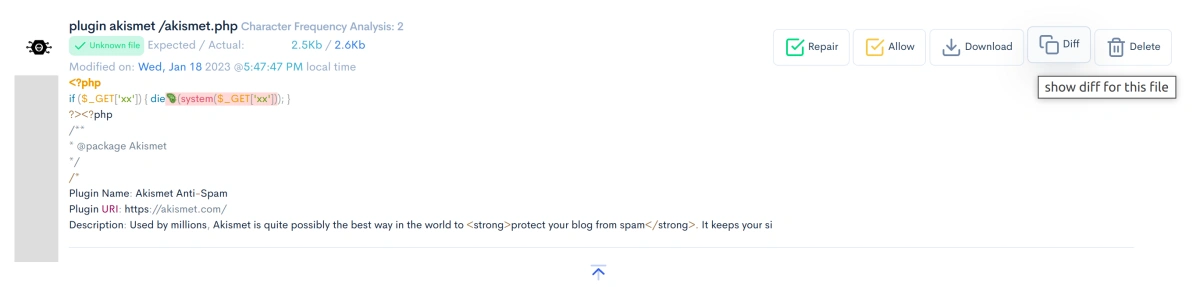
Each flagged file gives you several options. Click Details on any file to see the full set of actions.
✅ Repair
Available when the file is a known WordPress core, plugin, or theme file. This downloads the original clean version from WordPress.org and replaces the modified
copy on your server. This is the safest option for any file that has been tampered with.
🗑️ Delete
Removes the file from your site. Use this for files that are confirmed malware and are not part of any known plugin or theme.
Don't worry — deleted files aren't gone forever. BitFire automatically quarantines files before removing them
(see Restoring Quarantined Files below).
Warning: If you try to delete a LOW RISK file, BitFire will ask you to confirm because the file is likely legitimate and removing it could break your site.
☑️ Allow
Marks the file as safe in its current state. It will be skipped in future scans. Use this when you're confident a flagged file is legitimate — for example,
a custom plugin that uses unusual coding patterns.
📄 Diff
Shows a side-by-side comparison between the official version of a file and the version on your server. Changes are highlighted, and lines that look
potentially malicious are marked with a 🦠 icon. This is the best way to understand exactly what was changed.
⬇️ Download
Saves a copy of the flagged file to your computer for offline review or to share with a developer.
AI Malware Analysis
If you're not sure whether a flagged file is real malware or a false alarm, let BitFire's AI analyze it. The AI is trained to understand PHP and JavaScript code
and can tell you whether a file is genuinely dangerous or just looks unusual.
Our recommendation: Before deleting anything you're unsure about, run AI analysis first. It only takes a moment and can save you from
accidentally breaking your site.
How to Use AI Analysis
After the scan completes, an AI analysis banner appears above the results
Files rated CRITICAL are automatically selected for review (you'll see checkboxes next to each file)
Select or deselect files using the checkboxes, or use the Select All / Clear buttons
Click Analyze N Files to submit
What You Get Back
For each analyzed file, the AI provides:
Verdict: Malware Detected, Needs Review, or Marked Safe
Confidence score: How sure the AI is (shown as a percentage with a color-coded bar)
Explanation: A plain-English description of why the file was classified that way
Recommended action: Delete, Repair, or No Action Needed
Indicators of Compromise (IOCs): Specific suspicious patterns the AI found in the code
Files the AI marks as Safe with 80% or higher confidence are automatically allowed.
Free vs. Pro AI Analysis
Free
Pro
Files per scan
Up to 10
Up to 500
Speed
Batch processing (results in 0–2 hours)
Real-time (results in seconds)
AI models
Smaller models
Larger, more accurate models
Upgrade to Pro for real-time AI analysis with the most accurate models.
Restoring Quarantined Files
When you delete a file through BitFire, it isn't permanently destroyed. BitFire moves it to a quarantine folder first, so you can restore it if needed.
Quarantined files are stored at:
wp-content/uploads/bitfire_XXXXXXXXX/quarantine/
(where XXXXXXXXX is a random string unique to your installation)
Inside that folder, each quarantined file is saved with its original name plus a random extension, like:
original-file.php.a7b3f
To restore a quarantined file, use your hosting file manager or FTP client to copy it back to its original location and remove the extra extension.
Identifying Malware vs. Legitimate Code
If you'd like to review files manually using the Diff view, here's what to look for:
Example Malware Sample
Signs of Malware
Very long lines crammed with code
Variable names that look random or meaningless (e.g., $x4a2f, $_0xabc)
Functions designed to hide what the code does (base64_decode, str_rot13, eval)
Commands that execute programs on your server (system, exec, shell_exec)
No comments, poor formatting, and code that seems deliberately hard to read
Signs of Legitimate Code
Readable function and variable names (e.g., $user_email, get_post_title)
Comments explaining what the code does
Clean, well-organized formatting
Standard WordPress coding patterns
When in doubt: Use AI analysis rather than making a judgment call yourself. That's what it's there for.
Common Detection Types
Here are the most common reasons BitFire flags a file:
What Was Found
What It Means
Dangerous function call
The file calls functions like eval(), system(), or exec() that can run arbitrary code on your server
Variable names look like malware
A high percentage of the variable names appear random or machine-generated
Modified file
A known WordPress file has been altered from its official version
Unknown file
A file that doesn't belong to any known WordPress core, plugin, or theme
Suspicious JavaScript
JavaScript code using obfuscation or packing techniques commonly seen in malware
fromCharCode flood
JavaScript hiding its real content by encoding it as numbers
Sensitive file exposed
Files like .env, private keys, or credentials that should not be accessible on your web server
Command-Line Scanning
If you have WP-CLI access to your server, you can run scans from the command line:
This is useful for automated monitoring, scheduled server maintenance, or if you prefer working from the terminal.
Preventing Future Infections
Cleaning up malware is only half the battle. Here's how to keep your site safe going forward:
Schedule regular scans — Set an automatic scan interval in BitFire → Settings so infections are caught early
Keep everything updated — Update WordPress core, plugins, and themes as soon as updates are available
Remove unused plugins and themes — Every inactive plugin is a potential entry point
Use strong passwords — Especially for admin accounts and FTP/SFTP access
Real-time file protection (PRO) — Blocks unauthorized file changes as they happen
Auto-repair on hash mismatch (PRO) — Automatically restores tampered files from WordPress.org
Plugin integrity checks (PRO) — Verifies plugin files every time they're updated
Frequently Asked Questions
How long does a scan take?
About 60 seconds for a typical WordPress site with ~10,000 files. Subsequent scans may be faster.
The scanner flagged a file I know is safe. What do I do?
Click Allow to mark it as safe. It won't be flagged again. BitFire's false-positive rate is approximately 1 in 2,500 files,
so it's normal to see a few harmless files flagged on a typical site.
What if the hash server is unreachable?
Files that couldn't be verified are marked UNVERIFIED (gray). Just run the scan again when connectivity is restored.
Should I delete LOW RISK files?
Generally, no. Low Risk files are most likely legitimate parts of your plugins or themes. Use AI analysis to confirm before taking action.
What's the difference between Free and Pro AI analysis?
Free gives you batch analysis of up to 10 files with results in 0–2 hours. Pro gives you real-time analysis of up to 500 files with results in seconds,
using larger and more accurate AI models.
Can I undo a deletion?
Yes. Deleted files are quarantined, not permanently removed. See Restoring Quarantined Files for how to recover them.
Can I scan from the command line?
Yes. If you have WP-CLI installed, run wp bitfire malware to scan from the terminal.
Use --format=table, --format=json, or --format=csv for different output formats.
Cory Marsh has over 20 years Internet security experience. He is a lead developer on the BitFire project and regularly releases PHP security and programming videos on BitFire's you tube channel.