
WordPress administrator guide

Find WordPress errors with BitFire

Search recent PHP errors, identify the plugin, theme, or WordPress component involved, and collect useful troubleshooting details without opening server log files.

Temporary window24 hoursLimits generated log size
Exact contains searchFile + messageFind distinctive text
Severity filtersInfo → FatalReview urgent entries first
BitFire · Recorded errorsNewest first
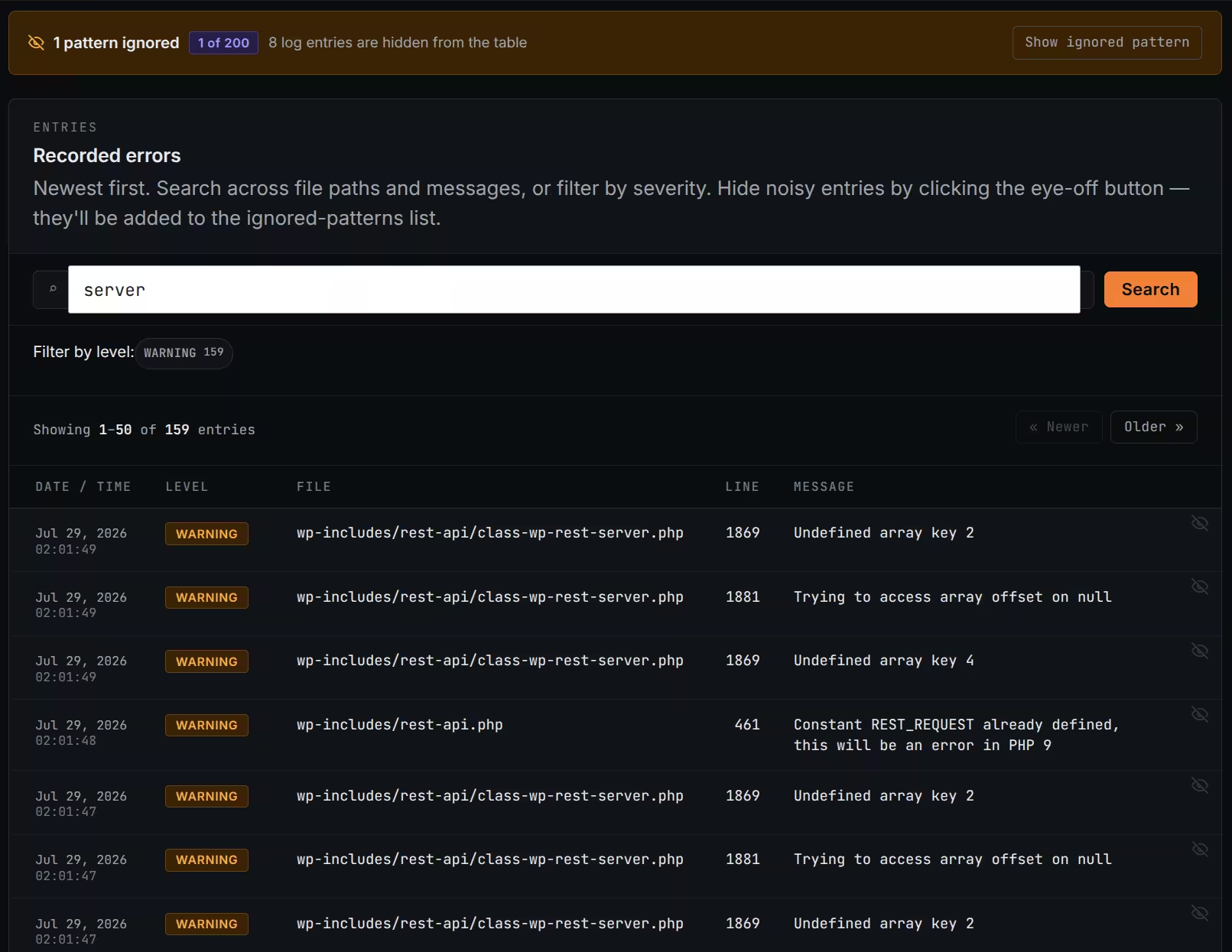
BitFire Error Log showing a search for server, a Warning severity filter, recent file paths, line numbers, messages, and controls for ignored patterns
Search file paths and messages, filter by severity, and hide understood noise from the main table.Open full-size image ↗
01
Start here

Open and read the Error Log

Enable temporary error logging when you need it, reproduce the problem once, and review the newest entries.

1

Enable error logging

Open BitFire settings and enable Log Site Warnings & Errors. Logging automatically turns off after 24 hours to limit disk usage.

2

Repeat the problem once

Note the time, then safely repeat the failing page, form, login, upload, or dashboard action.

3

Open the Error Log

Open the BitFire Error Log. Entries are listed newest first so you can compare them with the time of your test.

What each entry tells you

Date / timeWhen it happened

Compare this with the time a feature failed.

LevelHow serious it was

Start with Fatal and Error entries.

FileWhere it was reported

Often identifies a plugin, theme, or core file.

LineThe code location

Useful to a developer; do not edit it yourself.

MessageWhat PHP observed

Use distinctive wording when searching or asking for help.

02
Severity

Understand the error levels

Severity helps you choose what to investigate first, but repetition and the affected website feature also matter.

Low severity

Info

A notice about something the software observed. Review it when diagnosing a related feature.

Monitor when relevant
Needs review

Warning

Code met an unexpected condition but may have continued. Check new or repeating warnings.

Review repetition and impact
Serious

Error

An operation failed or software reported a serious problem. Test the related feature promptly.

Investigate promptly
Highest priority

Fatal

PHP could not continue the current request. This may cause a blank page or critical-error screen.

Investigate immediately
03
File paths

Identify the software involved

You do not need to understand PHP. Look for familiar folder names in the file path.

wp-content/plugins/plugin-name/A plugin

The folder usually names the plugin to update, test, or report to its developer.

wp-content/themes/theme-name/A theme

Check the active theme and any related parent theme for updates.

wp-admin/wp-includes/WordPress core

WordPress reported the error, although a plugin or theme may have passed it incorrect information.

custom-or-unknown-folder/Custom or unfamiliar code

Ask the developer or agency that installed it. Investigate unfamiliar PHP in upload folders promptly.

1

Recognize it. Confirm the plugin, theme, or custom component.

2

Update it. Install available WordPress and component updates.

3

Test again. Repeat the affected action once and check the newest entries.

04
Find useful entries

Search and filter the log

Search across file paths and messages, then combine the search with a severity filter when you need a narrower result.

Search exampleExact “string contains” matching
Plugin: woocommerceMessage: Undefined array keyFile: rest-api.php
1

Enter distinctive text

Use a plugin name, file name, or recognizable part of the message. Short searches usually work better than copying the entire message.

2

Choose a level

Select an Info, Warning, Error, or Fatal filter chip. Its number shows how many entries match that level.

3

Move through results

Use Older and Newer when the results span more than one page.

05
Reduce noise

Hide understood, repeated messages

An understood warning can repeat so often that it hides more useful entries. Ignored patterns keep the table readable without changing website code.

Hide a pattern

Select the eye-with-a-slash icon.

First identify the source and confirm that the related feature works. The matching pattern is then hidden from the main table.

Up to 200 patterns

Restore an ignored pattern

01Show ignored pattern
02Expand the pattern
03Select Un-ignore
06
Connect symptom and cause

Troubleshoot a website problem

The most useful clue is an entry recorded at the same time as a problem you safely repeated.

  1. 01
    Note the current time

    This lets you separate your test from unrelated background activity.

  2. 02
    Perform the failing action once

    Do not repeatedly submit a live payment, order, import, or email campaign.

  3. 03
    Review new Fatal, Error, and Warning entries

    Compare their times and file paths with your test.

  4. 04
    Update, test, and escalate

    Update recognized software. Ask its developer or your host if the message returns.

Common situations

After an update

Record what changed, install related updates, clear website caches, and test the affected feature once.

After a PHP change

Update older plugins and themes. If several unrelated components fail, give your host the time of the PHP change.

Form, checkout, or login failure

Check entries from the feature plugin and related payment, email, anti-spam, membership, or caching software.

07
Security context

Know when to investigate further

A malformed or hostile request can trigger an ordinary warning, but the warning alone does not show that an attack succeeded.

Keep the tools separate

The Error Log is for troubleshooting.

BitFire's firewall, security events, and malware scanner answer different questions. An empty Error Log does not prove that a website is secure.

Look for additional warning signs

Unknown administrator accountsUnexpected redirects or spam pagesUnrecognized plugins or filesSecurity settings changing unexpectedlyReports of malicious downloadsUnfamiliar PHP files in upload folders
08
Useful evidence

Send the right details when asking for help

Copied text and clear steps help a support technician diagnose the problem faster than a screenshot alone.

Contact the software developer

Plugin or theme path

Use this route when the file clearly belongs to a specific product.

Contact your hosting provider

Server or PHP issue

Use this route for PHP versions, databases, storage limits, permissions, or a site that cannot load.

Contact BitFire Support

Unclear source or security concern

Include the evidence below so the team can review the situation.

Website domain
Date, time, and time zone
What you were doing
Complete error message
Severity, file path, and line
Recent updates or PHP changes
Whether it can be repeated
Any visible website symptoms
09
Common questions

Error Log FAQ

Quick answers to the questions WordPress administrators ask most often.

Does every warning need to be fixed immediately?

No. Start with fatal errors and errors related to a feature that is not working. Then review warnings that are new, frequent, or connected with an important function.

Does an empty log mean the website has no problems?

No. It means BitFire has no matching PHP entries to show from the active logging window. Browser, database, network, and external-service failures may be recorded elsewhere.

Why did logging stop?

Log Site Warnings & Errors is a temporary troubleshooting setting that automatically turns off after 24 hours to limit generated log size. Enable it again when you need another troubleshooting window.

Why are entries missing from the table?

A search, severity filter, or ignored pattern may be hiding them. Clear the search and filter chips, then check the ignored-pattern banner.

Does hiding a warning fix it?

No. It only hides a matching pattern from the table. The plugin, theme, WordPress component, or custom code may continue producing the warning.

Should I deactivate the plugin named in an error?

Not automatically. Update it first and test the affected feature. Deactivating an important plugin can disable checkout, forms, membership, backups, or security.

Should technical errors be shown to visitors?

No. Public errors can confuse visitors and expose internal details. Use the private BitFire Error Log and your hosting provider's logs instead.

About the author

Cory Marsh

Cory has more than 20 years of internet security experience and is a lead developer on the BitFire project.

Read BitFire security research →
Still need help?

Send us the error details.

Include the domain, event time, complete message, severity, file path, line number, and the action that produced the problem. Never include passwords or private credentials.

Protect my site free →